The Short Answer #
To get SP-API access for your own seller account, register as a private developer in Solution Provider Portal (SPP), create an app, and click Authorize app. That click gives you a refresh token, which with the app's LWA client ID and secret is everything your code needs: no OAuth website, nothing to publish, and the app works while it says Draft.
The waiting is what changed since I recorded the video in August 2025, when credentials came through straight away. As of October 2026, new developers verify their identity in SPP first, and Amazon says the profile review for standard roles typically takes one to two weeks.
Building for other sellers? Software that other businesses connect to needs a public app with OAuth: see my Solution Provider Portal guide for public developers. SaaS builders who need that public app approved can hand it to me as a fixed-price job: SP-API public app approval.
What You Need Before You Start #
- A Professional selling plan. Amazon says Individual accounts are not eligible for private seller apps.
- The Primary User's login. Only the primary account user can complete registration and self-authorize.
- Identity documents: company registration number and registered address, a government photo ID, and a bank, credit card or payment-provider statement from the last 180 days as proof of address.
- A phone and a camera for the PIN and the identity-verification video call Amazon's onboarding guide describes.
- Your roles, since an app can only use roles approved on your developer profile:
| If you want to | Request this role |
|---|---|
| Pull orders and sales metrics (no buyer name or address) | Inventory and Order Tracking |
| Read catalog data, create or update listings | Product Listing |
| FBA inventory, FBA reports, inbound shipments | Amazon Fulfillment |
| Prices and repricing | Pricing |
| Settlement and financial reports | Finance and Accounting |
| Account and performance data | Selling Partner Insights |
| Buyer name and shipping address | Direct-to-Consumer Shipping (Restricted), with an extra review |
Need buyer data? Read the Restricted Data Token guide before you apply. The free SP-API access checklist maps roles to common jobs.
Step 1: Create Your Solution Provider Portal Account #
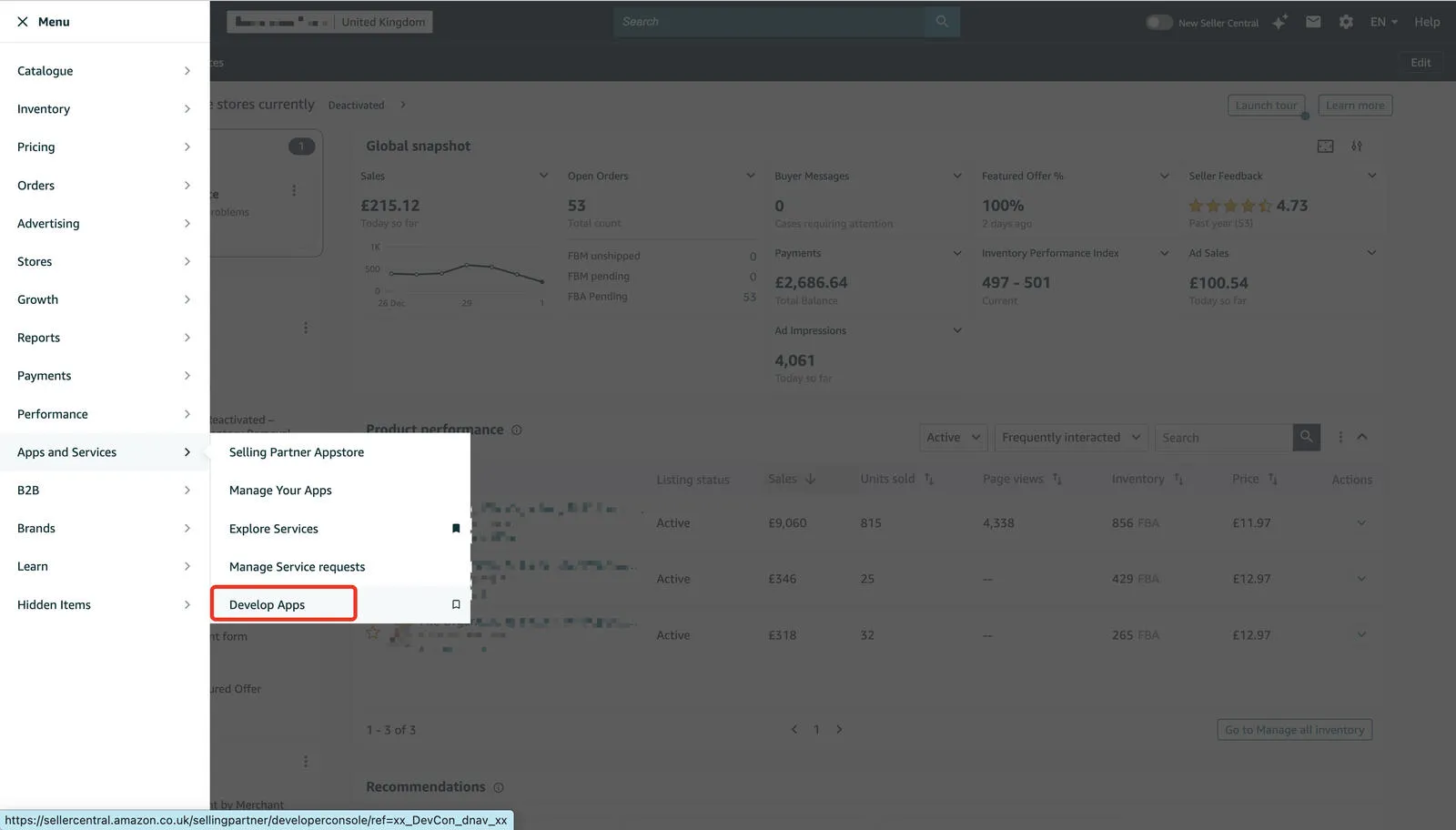
Amazon's private developer page still starts in Seller Central (Apps and Services, then Develop Apps), but the developer move to SPP is complete: new developers register in SPP, and Seller Central's developer pages redirect there.
- Sign in at solutionproviderportal.amazon.com with the Primary User's login. Not Authorized just means no SPP account yet.
- Choose Register, then Acknowledge & Continue.
- On Program Enrollment, tick the box, select your Amazon account number and choose Enroll and Finish.
- On Solution Type Setup, select Build applications that use SP APIs and choose Apply.
Step 2: Verify Your Identity #
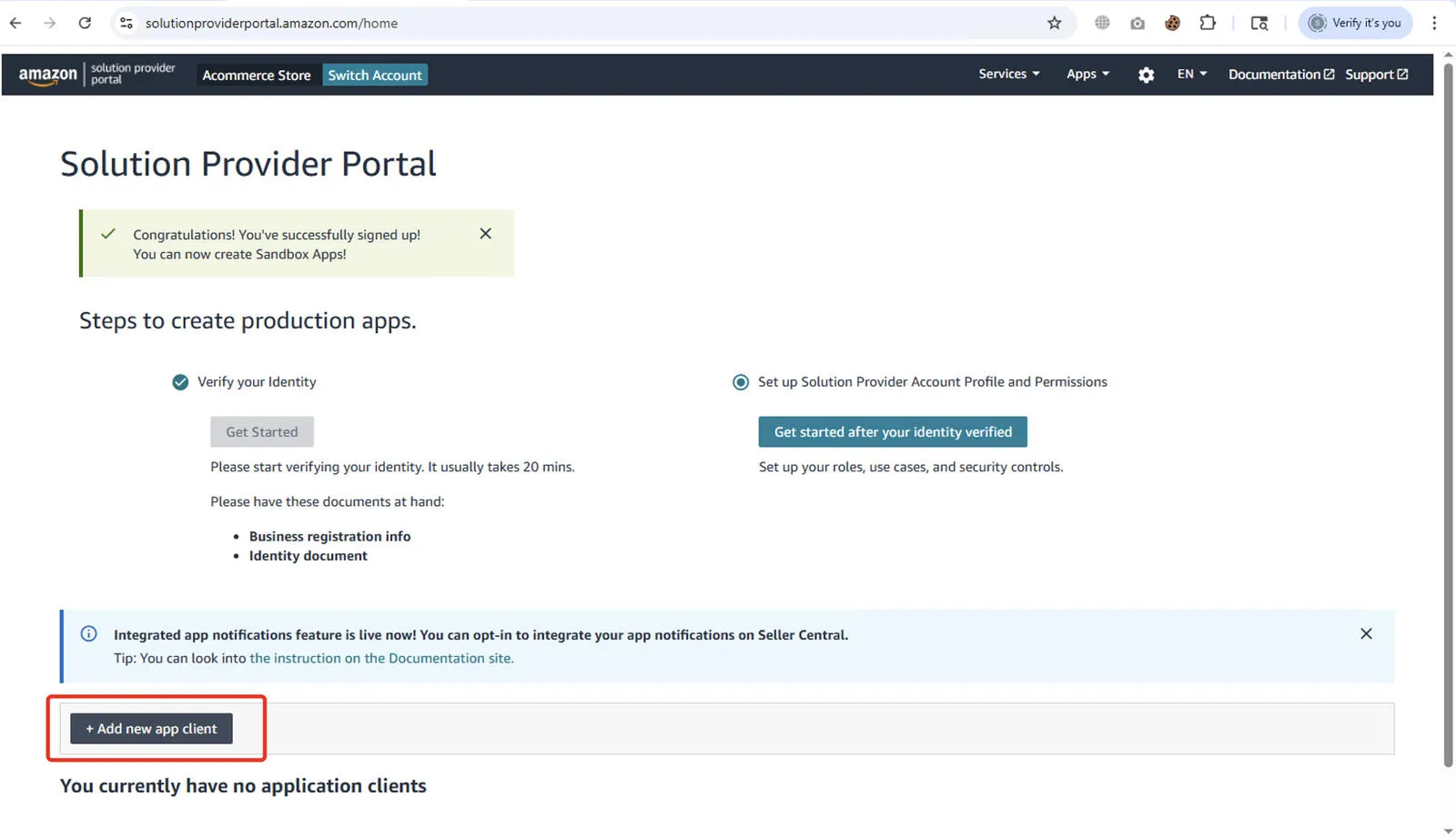
- Choose Verify your identity, then Get Started. SPP says the form usually takes about 20 minutes.
- Business Information: location, business type, name, registration number and registered address, then the phone PIN.
- Primary Contact Person: your details, then upload the photo ID and the proof of address.
- On the Identity verification is required banner, choose Continue and complete the check. Success shows Verification successful.
Type carefully. Name, date of birth, ID number and expiry date must exactly match the documents, the form can't be edited after you submit it, and Amazon says verification decisions are final. Allow up to two business days for the review.
Step 3: Fill In the Developer Profile as a Private Developer #
Choose Get started after your identity is verified. This is the part Amazon reviews.
- Contact Information: organization name, website, country and primary contact.
- Data Access: the private option, which Amazon words as "Private Developer: I build application(s) that integrate my own company with Amazon Services APIs."
- Roles: your list. A restricted role adds extra questions.
- Use Cases: what your app does with the data, in your own words.
- Security Controls: truthful answers, ideally from whoever runs your security, reflecting how you actually meet the Acceptable Use Policy and Data Protection Policy.
- Accept the Solution Provider Portal Agreement and both policies, then choose Register.
Amazon asks you to stay under 500 words and not paste text from its policies. Then you'll see Your developer registration is under review; updates go to the admin email on file, and questions must be answered within five days or the case closes.
Step 4: Register the App (Draft Is Normal) #
Once the profile is approved, open Develop Apps and choose Add new app client.
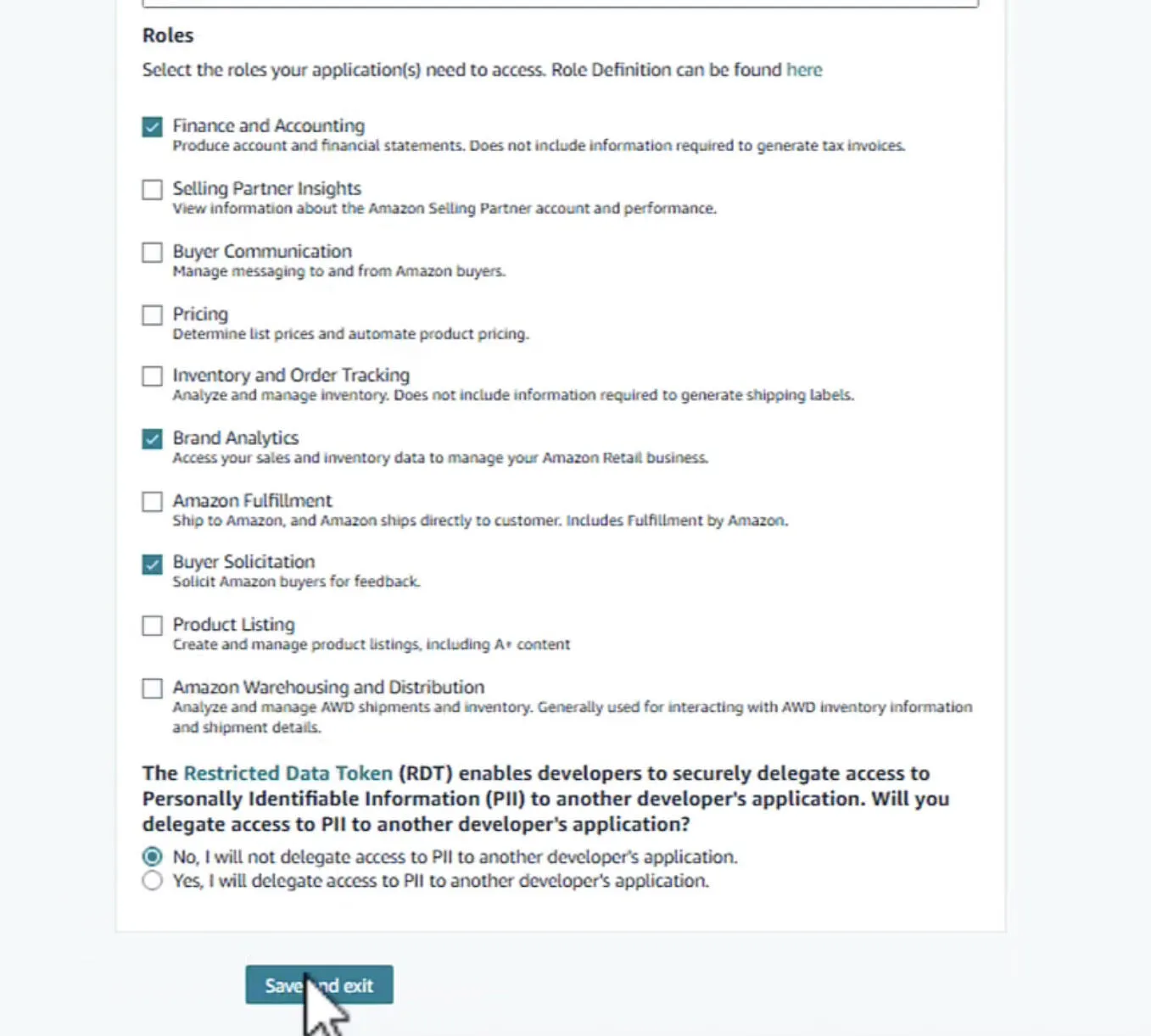
- Name the app, set API type to SP-API and Application type to Production (a Sandbox app never returns your data).
- If Sellers and Vendors check boxes appear, tick Sellers, then select your approved roles.
- Asked whether you'll delegate PII access to another developer's application? No, unless one genuinely needs your buyer data.
- Choose Save and exit.
The app is created in Draft and, being private, stays there. In Amazon's words: "You can self-authorize your application in draft status because there is no reason to publish a private application." There are no OAuth login or redirect URI fields either; those are for public apps.
Step 5: Copy the LWA Client ID and Client Secret #
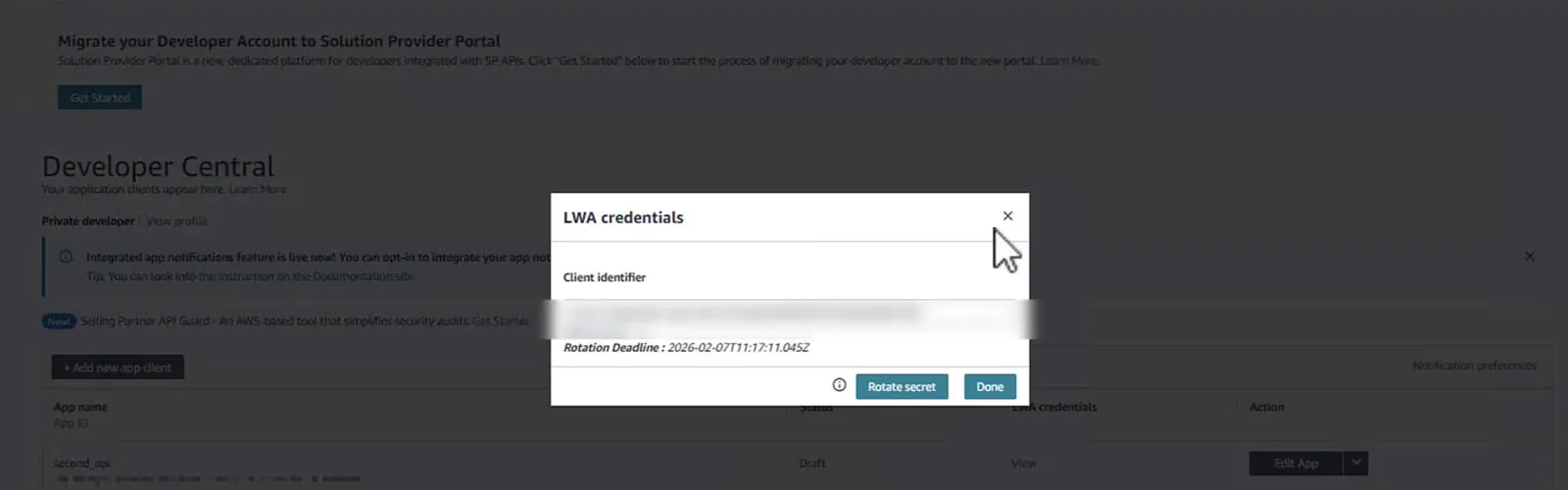
Choose View under LWA credentials. The client identifier looks like amzn1.application-oa2-client.… and the secret like amzn1.oa2-cs.v1.…. Keep both in a secrets manager, not in your code.
The secret expires. Amazon requires rotation every 180 days and warns you 90 days ahead. Rotate secret is on the same panel; the old secret works for seven more days, and refresh tokens survive because they're tied to the client ID. Miss the deadline and every call fails.
Step 6: Self-Authorize and Get the Refresh Token #
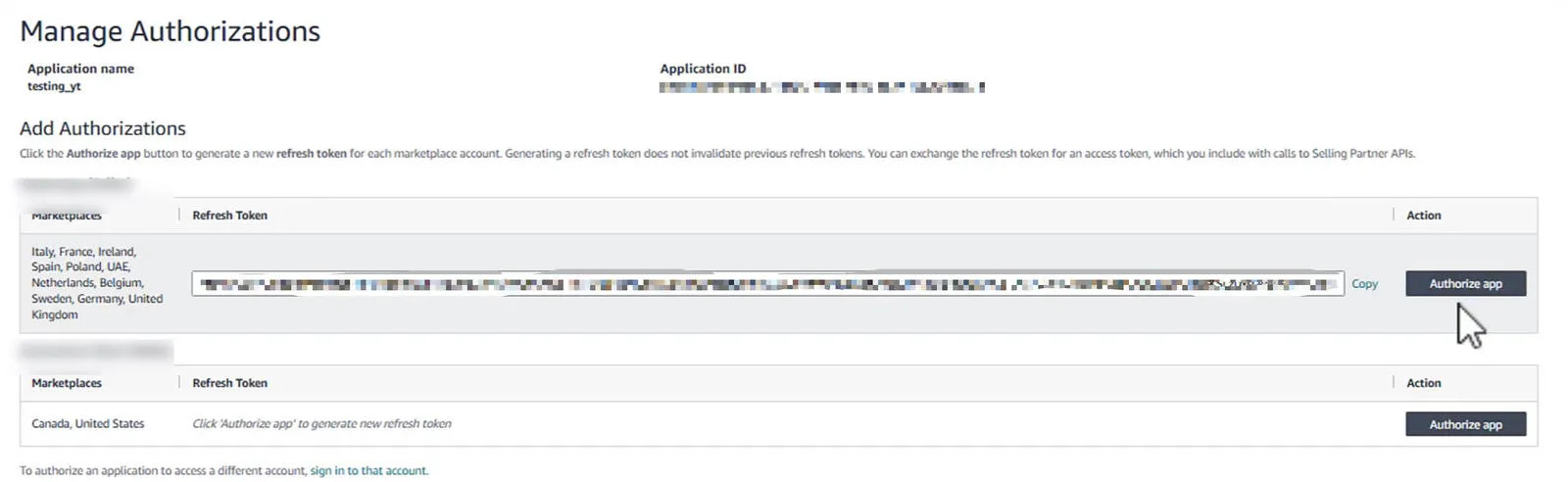
On the app's Manage Authorizations page (in Seller Central: Apps and Services, then Develop Apps), choose Authorize app on your account's row. The refresh token, starting Atzr|, appears on screen. Details: Amazon's self-authorization page.
- One token per regional account. A merged account gets an Authorize app button per region, all used with the same client ID and secret.
- Clicking again is safe. A new refresh token doesn't invalidate the old ones.
- Ten is the cap for self-authorizations on a private app.
- Primary User only. A secondary user gets error
SPDC8143.
Step 7: Make Your First Call #
Swap the refresh token for an access token, then call getMarketplaceParticipations, which lists the marketplaces your account sells in. In North America and Europe it needs the Product Listing or Selling Partner Insights role.
curl -s -X POST https://api.amazon.com/auth/o2/token \
  -H "Content-Type: application/x-www-form-urlencoded;charset=UTF-8" \
  --data-urlencode "grant_type=refresh_token" \
  --data-urlencode "refresh_token=Atzr|YOUR_REFRESH_TOKEN" \
  --data-urlencode "client_id=amzn1.application-oa2-client.YOUR_ID" \
  --data-urlencode "client_secret=amzn1.oa2-cs.v1.YOUR_SECRET"
The response holds an access_token (Atza|…) with "expires_in": 3600, so it lasts an hour. Then the call itself:
curl -s https://sellingpartnerapi-na.amazon.com/sellers/v1/marketplaceParticipations \
  -H "x-amz-access-token: Atza|YOUR_ACCESS_TOKEN" \
  -H "x-amz-date: $(date -u +%Y%m%dT%H%M%SZ)" \
  -H "user-agent: MySellerTool/1.0 (Language=curl)"
Success is a payload list with entries like "id": "ATVPDKIKX0DER", "countryCode": "US" and "isParticipating": true. The operation allows 0.016 requests per second (burst 15), so don't loop it. The same check in Python (pip install requests):
import time
import requests

CLIENT_ID = "amzn1.application-oa2-client.YOUR_ID"
CLIENT_SECRET = "amzn1.oa2-cs.v1.YOUR_SECRET"
REFRESH_TOKEN = "Atzr|YOUR_REFRESH_TOKEN"   # the token for this region's account
ENDPOINT = "https://sellingpartnerapi-na.amazon.com"   # -eu or -fe for other regions

token = requests.post("https://api.amazon.com/auth/o2/token", data={
    "grant_type": "refresh_token",
    "refresh_token": REFRESH_TOKEN,
    "client_id": CLIENT_ID,
    "client_secret": CLIENT_SECRET,
}, timeout=30)
if token.status_code != 200:
    raise SystemExit(f"LWA said {token.status_code}: {token.text}")
access_token = token.json()["access_token"]   # valid for 3600 seconds

resp = requests.get(f"{ENDPOINT}/sellers/v1/marketplaceParticipations", headers={
    "x-amz-access-token": access_token,
    "x-amz-date": time.strftime("%Y%m%dT%H%M%SZ", time.gmtime()),
    "user-agent": "MySellerTool/1.0 (Language=Python)",
}, timeout=30)
if resp.status_code != 200:
    raise SystemExit(f"SP-API said {resp.status_code}: {resp.text}")
for row in resp.json()["payload"]:
    m = row["marketplace"]
    print(m["id"], m["countryCode"], row["participation"]["isParticipating"])
| Region | Endpoint | Marketplaces |
|---|---|---|
| North America | sellingpartnerapi-na.amazon.com | US, Canada, Mexico, Brazil |
| Europe | sellingpartnerapi-eu.amazon.com | UK, Germany, France, Italy, Spain, Netherlands, Sweden, Poland, Belgium, Ireland, Turkey, UAE, Saudi Arabia, Egypt, South Africa, India |
| Far East | sellingpartnerapi-fe.amazon.com | Japan, Australia, Singapore |
What Each Credential Is For #
| Credential | What it does | How long it lasts |
|---|---|---|
| Client ID | Identifies your app in every token request, in every region | Stays the same when you rotate the secret |
| Client secret | Proves the token request comes from your app | Rotate every 180 days |
| Refresh token | Your authorization for one account in one region, swapped for access tokens | Amazon's 403 reference lists 365 days; generate a new one after adding a role |
| Access token | Sent as x-amz-access-token on every call | One hour |
Calls that return buyer PII take a Restricted Data Token in place of the access token.
The Errors You'll Actually Hit #
invalid_client
{
  "error_description": "Client authentication failed",
  "error": "invalid_client"
}
LWA rejected the client ID and secret pair. Amazon documents it for code still using the old secret after a rotation; a mistyped secret does the same.
403: the LWA secret token has expired
{
  "errors": [
    {
      "code": "Unauthorized",
      "message": "Access to requested resource is denied.",
      "details": "The LWA secret token you provided has expired."
    }
  ]
}
You missed the 180-day rotation, and Amazon blocks every call from the app until you rotate.
Any other 403
Authentication worked but the call isn't allowed. Amazon's error-code reference lists why: a missing role, the wrong regional endpoint ("Seller accounts are region-specific even if applications are global"), vendor credentials on a seller API, a wrong path version, a suspended account. My SP-API 403 guide takes them in order.
invalid_grant
The refresh token is invalid, expired, revoked or was issued to a different client ID. Check it came from this app and kept its Atzr| prefix.
MD1000, MD9100, MD5101
OAuth errors for public apps (Draft app through the production consent URL, missing login or redirect URI, redirect mismatch). Seeing them means you're on the public path.
Dead Ends Worth Skipping #
- Waiting for Draft to change or hunting for OAuth URI fields. Neither applies to a private app.
- Setting up IAM roles and ARNs. Not needed since October 2, 2023.
- Answering "No" to security controls because it's "only for my own use". The Data Protection Policy still applies; a viewer of the video did this and was rejected.
- Expecting real data from a Sandbox app, or sending one region's refresh token to another region's endpoint.
Rejected Over the Data Protection Policy? The Way Back #
It isn't final. Amazon says a denied applicant can see the questions and controls that were missed, fix them and resubmit.
- Read the denial. It links to the exact questions and controls you missed.
- Fix the control, not just the answer. The DPP covers "all systems that store, process, or otherwise handle data vended and retrieved from the Amazon Services API". Its general section requires, among other things, multi-factor authentication for all user accounts, API credentials encrypted at rest and rotated at least every 12 months, encryption in transit (such as TLS 1.2 or higher), and an incident response plan that includes notifying security@amazon.com within 24 hours.
- Rewrite truthfully, in your own words, under 500 words. Amazon may ask for documentation, so don't claim a control you can't show.
- Resubmit via Settings (gear icon), Account Info, Developer Profile, Register. Answer follow-ups within five days.
Amazon's voluntary Security Compliance Self-Check Assessment (on its Policies and Agreements page) is a quick way to find gaps first; it doesn't affect the formal review.
FAQ: Questions From the Video Comments #
My app has been in Draft for weeks. Is it stuck?
No. Draft is the normal, permanent state of a private app; Amazon says you can self-authorize in Draft because there is no reason to publish a private application. Authorize it and call the API.
Where are the OAuth Login URI and Redirect URI fields?
Only public applications have them. A private app is self-authorized, so it has no login or redirect URI. Needing them means you're building for other businesses: see the Solution Provider Portal guide.
Should I self-authorize or register as a public developer?
Self-authorize if every seller account your code touches is your organization's. If other businesses will connect, you need a public developer profile, OAuth, a website meeting Amazon's guidelines, a fuller security review and a Selling Partner Appstore listing. Amazon does allow updating a private app to public later, but it brings the same requirements.
Do I get a different refresh token for each region?
Yes. The app, client ID and secret are global, but seller accounts are region-specific, so each regional account is authorized separately and gets its own refresh token. Send each token to its own regional endpoint.
Can one private app pull data for several seller accounts?
Yes, up to 10 self-authorizations, for accounts your organization owns where you're the Primary User. Client accounts are different: a private app serves a single organization, so clients mean a public app they authorize through OAuth (up to 25 sellers while it's unlisted).
My developer profile has said "under review" for over a week. What should I do?
Probably keep waiting: Amazon says standard-role reviews typically take one to two weeks, and restricted roles get business, security and technical reviews. Answer questions within five days, and if it drags on, contact SP-API Developer Support at developer.amazonservices.com/support.
Identity verification is asking for a card or a bill. What does it want?
A proof of address. With a government photo ID, SPP accepts a bank, credit card or payment-provider statement (Payoneer, Hyperwallet, World First, Alipay) from the last 180 days showing your name and address; its guide doesn't list utility bills. Seller Central's own seller verification is a separate process.
Seller Central keeps sending me to the Solution Provider Portal. Is that right?
Yes. Amazon's FAQ says developer features in Seller Central and Vendor Central now redirect to SPP. If it loops or lands in the wrong account, try SPP in a different browser where only the Primary User is signed in.
Do I need an AWS account or an IAM role ARN?
No. Since October 2, 2023 the SP-API doesn't require AWS IAM or Signature Version 4; Amazon disregards a SigV4 signature and authorizes with the LWA access token in the x-amz-access-token header.
Does SP-API cost anything?
Not the API, as of October 2026. Amazon announced developer fees, then said it "will not move forward with the SP-API usage and annual fees at this time". The cost you can't avoid is the Professional selling plan: $39.99 a month plus selling fees in the US.
Get It Done in One Sitting #
If you'd rather not do this alone, I run a 45-minute screen-share session for $50 for sellers, brands and agencies getting their own access. We fill in the developer profile and app registration together, answer the security questions in terms that match what you actually do, and pick only the roles you need; depending on where you are in Amazon's review, you leave with the application submitted or with working credentials and a first call. I can't promise Amazon's decision, and it isn't for SaaS apps. Details: the $50 API access session.
Once you're in, SP-API carries the order syncs and reporting I get hired to build as an SP-API developer. Running ads too? Amazon Ads API access is a separate application.
Related guides
Amazon SP-API
The SP-API Reports Pattern Everyone Gets Wrong (Async, Step by Step)
The SP-API Reports API is asynchronous — request, poll, download, decompress — and most broken integrations either treat it like a synchronous call or poll it straight into a throttle. Here's the correct four-step flow, the status states that trip people up, and the gzip gotcha at the end.
Read guide →Amazon SP-API
Amazon Vendor Central API: What 1P Vendors Can Actually Automate
Vendor Central (1P) has a real API surface through the SP-API vendor family — retail analytics, purchase orders, shipments, invoices, and direct fulfillment. Here's what's genuinely automatable, what still isn't, and where the fastest wins are for a 1P vendor.
Read guide →Amazon SP-API
Amazon SP-API 403 Unauthorized: Every Cause and How to Fix It
A 403 "Access to requested resource is denied" from the SP-API almost never means your credentials are wrong — it usually means a role, a token, a region, or an authorization is mismatched. Here are the eight causes that produce a 403, in the order worth checking them, with the exact fix for each.
Read guide →Stuck on SP-API, or want it built?
Getting your access approved is a 45-minute working session for $50. Building the integration itself (orders, inventory, reports, buyer-PII) gets a fixed quote within 12 hours.